Android Phones Already Have Galaxy S26’s Document Scanner
When Samsung unveiled the Galaxy S26’s AI-powered document scanner, many assumed cutting-edge tech required a brand-new phone. But here’s the twist: your current Android phone already has a document scanner that rivals—and even outperforms—this flashy feature. The secret? It’s built into Google Drive, and it works on any Android device, from budget models to flagship phones.
How to Use Google Drive’s Built-In Document Scanner
Step-by-Step Guide
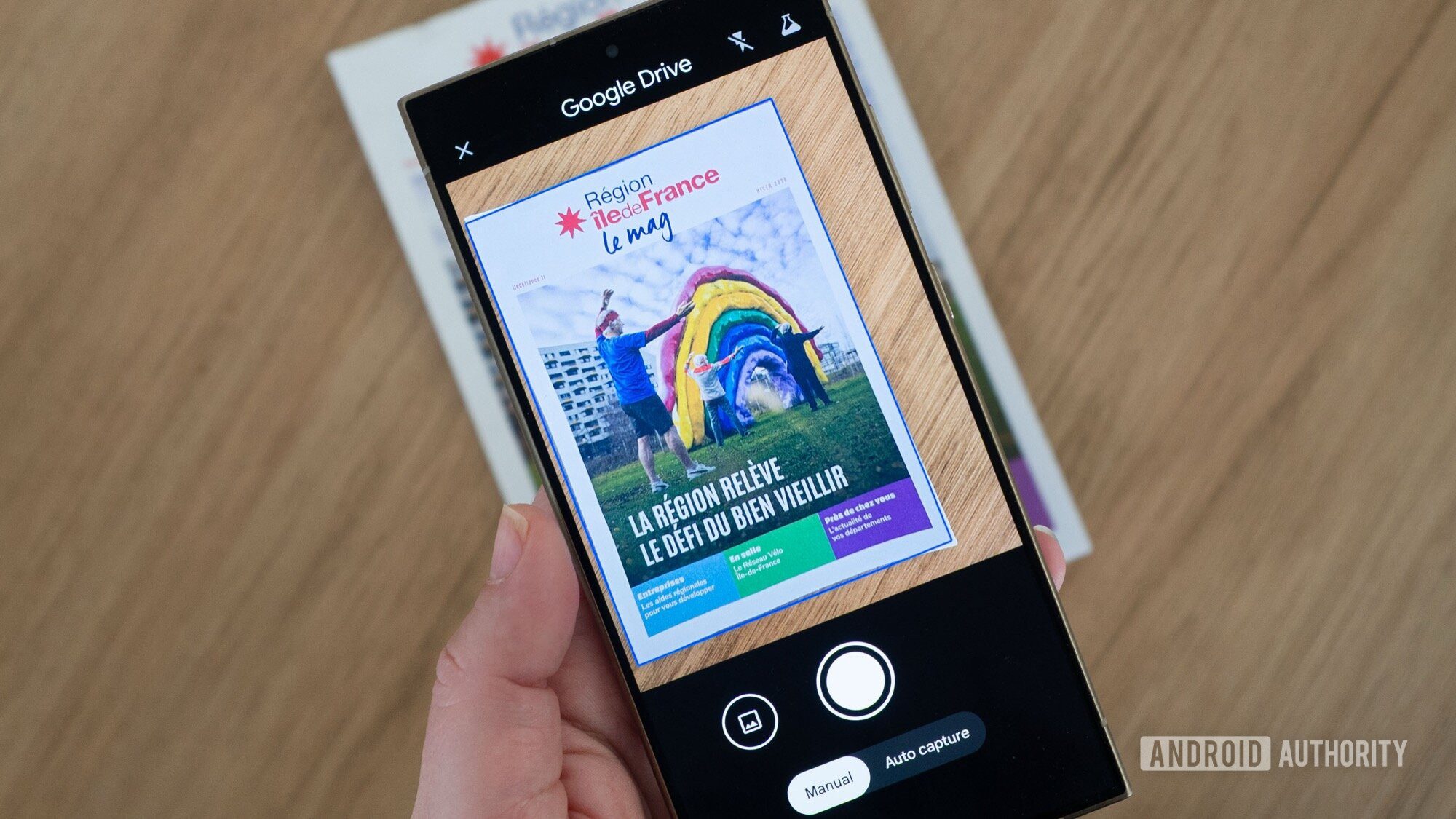
Open the Google Drive app, tap the Plus (+) button, and select “Scan.” Two modes are available: Manual for precise control or Auto Capture for hands-free scanning. The app automatically detects document edges, crops the image, and adjusts lighting—all in seconds.
Auto-Crop and Auto-Capture Features
Google Drive’s scanner eliminates the need for perfect alignment. Whether you’re scanning a receipt or a multi-page contract, the app smartly crops the document, removing distractions like tables or walls. I’ve tested this on everything from a 3-year-old Nothing Phone 2 to a Pixel 10 Pro XL—and it works flawlessly.
Advanced Editing and Batch Scanning
Manual Adjustments and Filters
After scanning, you can rotate, recrop, or apply filters like grayscale. The default settings are so effective that I rarely tweak them. Shadow removal and contrast enhancement are handled automatically, producing crisp, professional-quality scans.
Batch Scanning for Efficiency
Google Drive now supports batch scanning. Move from one page to another, and the app captures them all in one go. While this beta feature is fast, I occasionally misalign pages during rapid scans. For critical documents, I still prefer the Manual mode for precision.
Why Google Drive Outshines Fancy AI Scanners
Time-Saving and Accessibility
Before Google Drive, scanning documents felt like a chore. Now, it takes seconds. My parents, who once struggled with lighting and angles, now send me scans directly to a shared folder. It’s parent-proof tech at its best.
No Need for Expensive Hardware
The Galaxy S26’s “AI scanner” relies on basic image processing—nothing groundbreaking. Google Drive does the same without requiring a $1,000 phone. You don’t need generative AI to remove fingers from receipts; just hold the document straight and let Drive handle the rest.
Conclusion: Skip the Hype, Use What You Have
Google Drive’s document scanner is free, fast, and works on any Android phone. It’s the perfect solution for students, remote workers, or anyone needing quick digital backups. Next time you need to scan a document, forget about Galaxy AI—just open Google Drive.
FAQs
- Does my Android phone need a new OS to use Google Drive’s scanner? No. The feature works on Android 8.0 and newer.
- Can I scan handwritten notes with Google Drive? Yes, but results depend on lighting and clarity.
- Is the Galaxy S26’s scanner better than Google Drive? Not really. Both use similar AI, but Google Drive is free and more versatile.
- How do I convert scans to PDF? Tap “Next,” name your file, and choose PDF format in the save menu.
- Can I edit scanned documents later? Yes—open the PDF in Google Docs for text editing.