Boost Your Samsung Galaxy Camera with These Pro Tips
Have you ever taken a photo with your Samsung Galaxy only to feel disappointed by the results? You’re not alone. Even high-end smartphones can fall short if you don’t tweak the right settings. The good news? A few simple adjustments can transform your photos from average to stunning. In this guide, we’ll walk you through the most impactful camera settings to unlock your Galaxy’s full potential.
Why Samsung Galaxy Camera Settings Matter
Modern smartphones like the Samsung Galaxy come packed with advanced camera features. However, default settings often prioritize convenience over quality. By customizing resolution, lighting modes, and focus options, you can dramatically improve clarity, color accuracy, and detail. Whether you’re a casual shooter or a photography enthusiast, these tweaks will help you capture every moment with confidence.
Key Samsung Galaxy Camera Settings to Adjust
1. Resolution and Aspect Ratio
Start by checking your resolution settings. Navigate to Camera > Settings > Resolution and select the highest option available. For social media posts, switch to a 1:1 or 4:5 aspect ratio for square or vertical shots. This ensures your photos look sharp on all platforms.
2. HDR Mode for Vibrant Colors
High Dynamic Range (HDR) mode balances light and shadow in tricky conditions. Enable it in Camera > Settings > HDR. For example, when photographing a sunset, HDR prevents the sky from appearing washed out while preserving details in darker areas.
3. Night Mode for Low-Light Mastery
Low-light photography can be challenging, but Samsung’s Night Mode uses AI to brighten scenes and reduce noise. Tap the Pro icon in the Camera app, then select Night. For best results, keep your phone steady for 2-3 seconds while the camera captures multiple frames.
4. Focus and Zoom Settings
Tap the screen to adjust focus, or use the Focus button in Pro mode. Avoid digital zoom (which degrades quality) and opt for optical zoom if your model supports it. For portraits, switch to Portrait Mode to blur the background and highlight your subject.
Advanced Tips for Creative Control
- Manual Exposure: Tap and hold on a bright or dark area to adjust exposure manually.
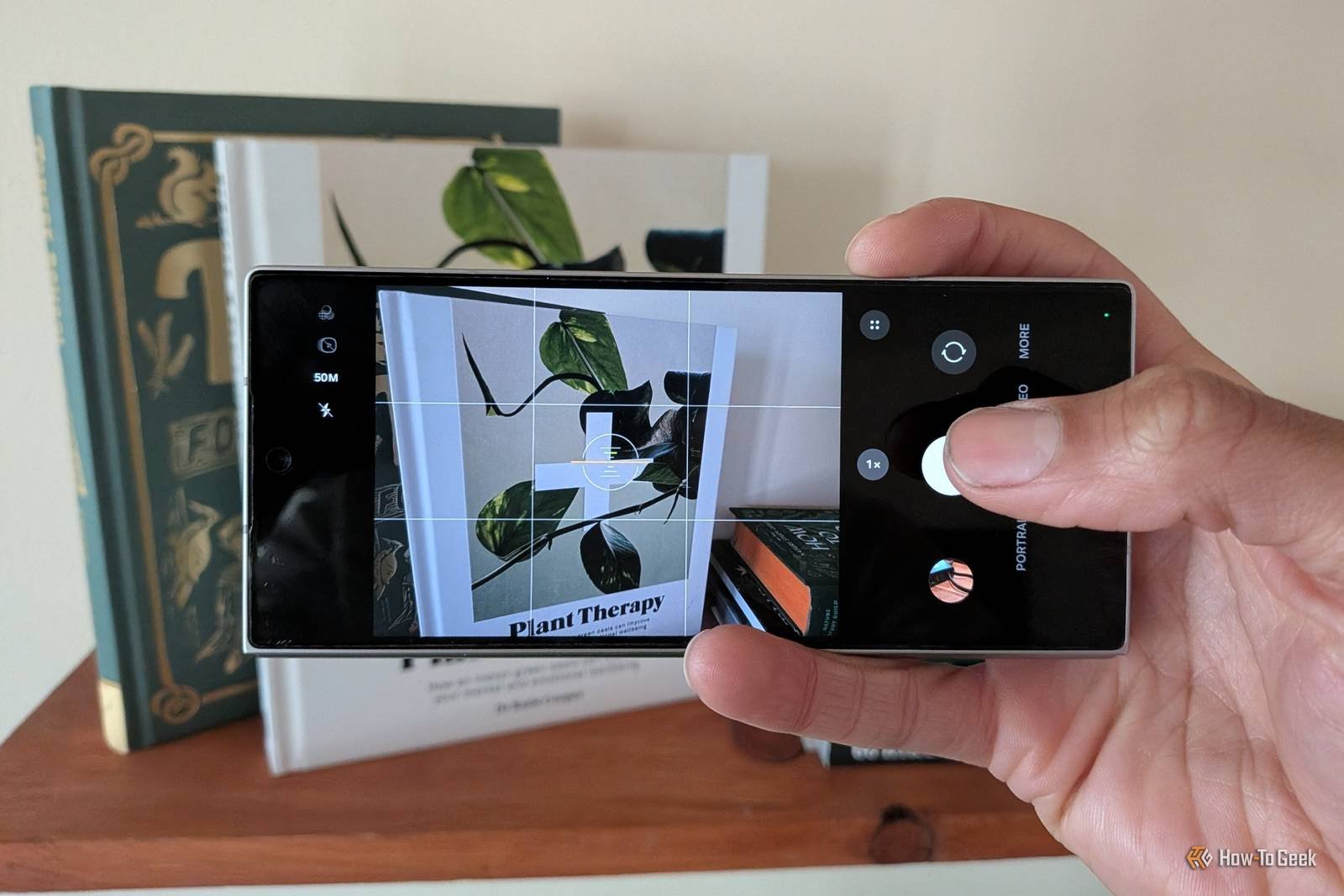
- Grid Lines: Enable Grid in Settings to align horizons and follow the rule of thirds.
- AI Scene Optimization: Let the camera automatically detect scenes like food, landscapes, or pets for tailored enhancements.
Final Thoughts: Capture Your Best Shots Yet
With these adjustments, your Samsung Galaxy camera can rival professional gear. Experiment with settings to find what works best for your style. Remember, practice makes perfect—so grab your phone, explore new angles, and start snapping. For more tips, follow our blog or share your favorite settings in the comments below!