How to Create a Google Phone Calling Card: A Step-by-Step Guide
Imagine adding a personal touch to every call you make. With Google Phone’s Calling Cards, you can now customize your outgoing caller ID with photos, text, and more. This feature, updated in March 2024, lets you create a Calling Card that recipients see when you call them. Here’s how to make one in seconds.
What Is a Google Phone Calling Card?
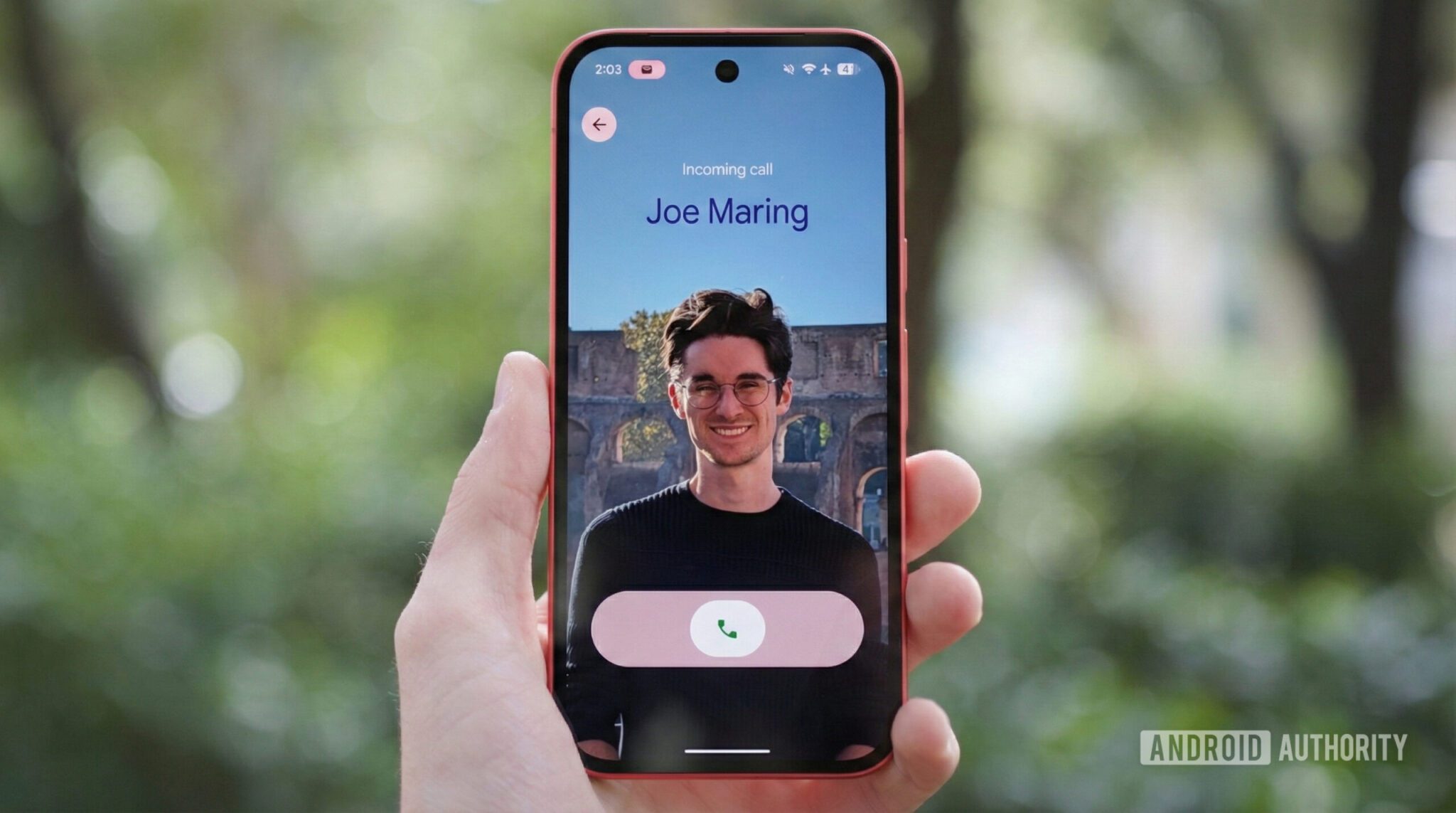
A Calling Card is a full-screen preview that appears when you call someone. It includes a photo, custom text, and your name. Previously limited to contacts, the March 2024 update lets you create a public Calling Card visible to anyone you call.
How to Create Your Calling Card
- Open the Google Phone app.
- Tap the three lines in the top-left corner.
- Select Settings > Calling card.
- Tap Create under “Your calling card.” Choose a photo from Camera, Gallery, or Google Photos.
- Customize text with fonts, colors, and alignment. Use the preview to adjust placement.
- Tap Done to save your design.
Sharing Options
By default, your Calling Card is visible only to contacts. To share it with everyone:
- Go to Settings > Calling card.
- Select Show your calling card to > Everyone.
Troubleshooting the Update
If you don’t see the feature:
- Update the Google Phone app via the Play Store.
- Wait for the rollout—Google deploys updates gradually.
Why Use a Calling Card?
Calling Cards add personality to calls and help recipients recognize your number instantly. For businesses, they’re a subtle branding tool. For individuals, they’re a fun way to express your style.
Conclusion: Make Your Calls Memorable
With Google Phone’s Calling Cards, you can turn every call into a personalized experience. Whether you’re sharing a professional brand or a quirky photo, this feature makes your calls stand out. Ready to create yours?
FAQs
- How do I create a Google Phone Calling Card?
- Follow the steps in the Google Phone app’s Settings menu to upload a photo and customize text.
- Can I change my Calling Card design later?
- Yes—access the Calling Card settings at any time to update your photo or text.
- Why can’t I see the Calling Card option?
- Ensure your Google Phone app is updated. If it is, wait for the feature to roll out to your device.
- Is the Calling Card visible to all contacts?
- By default, it’s visible only to contacts. You can change this to “Everyone” in the settings.
- Can I use emojis in my Calling Card text?
- Yes! Emojis add a fun, visual element to your custom text.