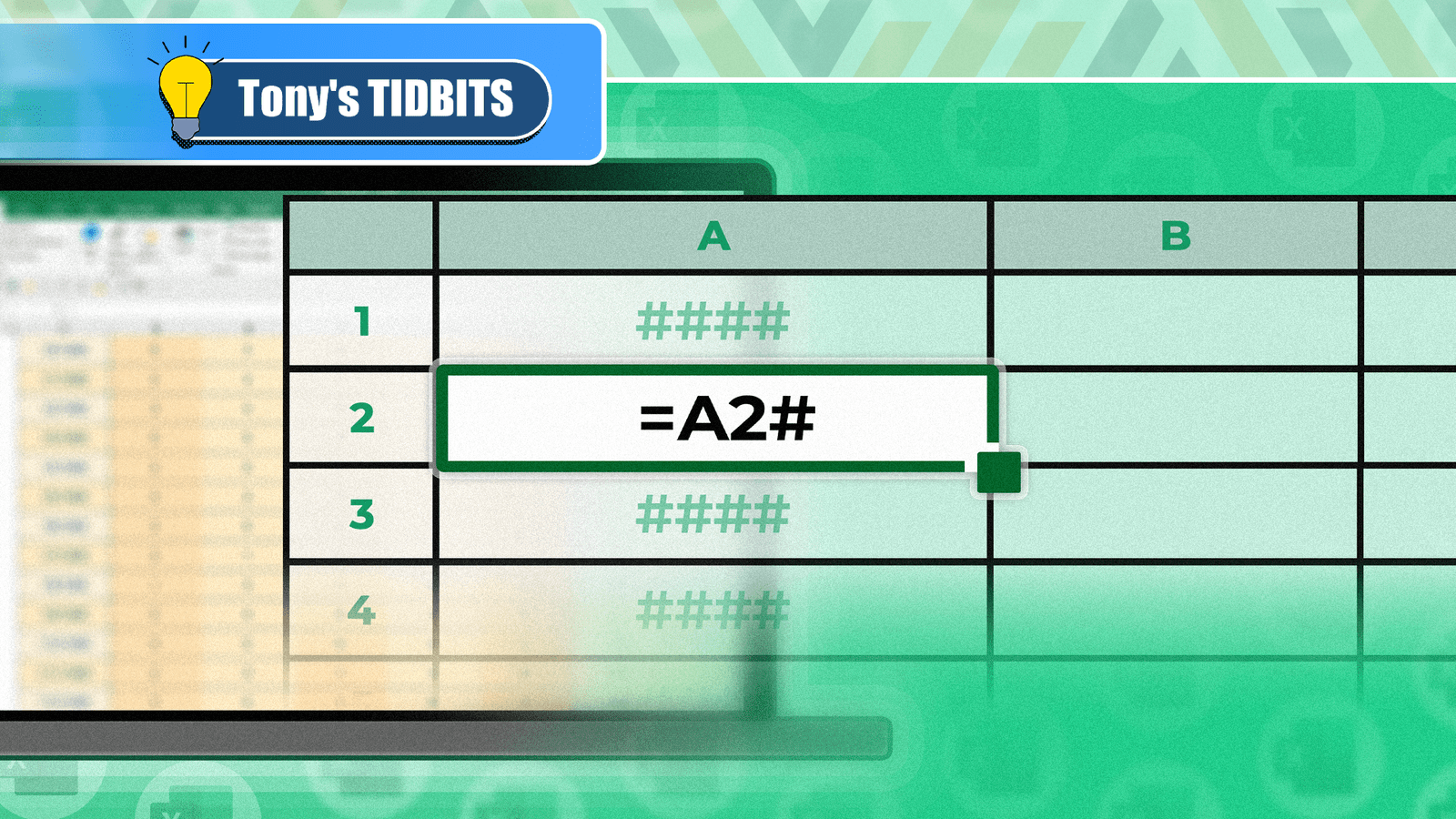
Excel Hash Sign: What It Does & How to Use It
Have you ever seen a mysterious # symbol in your Excel formulas and wondered what it means? You’re not alone. The hash sign, or “#” symbol, plays a unique role in Excel that can unlock powerful spreadsheet capabilities—if you know how to use it. Let’s break down its purpose and practical applications.
Understanding the Hash Sign in Excel Formulas
The hash sign (#) in Excel isn’t just a random character—it’s a versatile tool for data analysis and formula creation. Its primary functions include:
- Array references: Helps reference entire columns or rows
- Error indicators: Appears when Excel can’t display a value properly
- Named range shortcuts: Simplifies complex formula syntax
When Excel Shows a Hash Sign
Excel displays # symbols when:
- Column width is too narrow: A single # appears across the cell
- Formula errors occur: #VALUE!, #REF!, or #DIV/0! indicate specific issues
- Array operations: Used in dynamic array formulas (Excel 365/2021)
Practical Uses for the Hash Symbol
Here’s how to leverage the hash sign effectively:
- Quick cell references: Use
=A#to reference all data in column A - Named range shortcuts: Combine with named ranges for cleaner formulas
- Dynamic arrays: Enable spill ranges with
=FILTER(A1:A10,B1:B10>5)
Common Mistakes to Avoid
While the hash sign is powerful, misuse can lead to errors. Common pitfalls include:
- Using # in regular formulas without proper syntax
- Ignoring error messages like #NAME? or #N/A
- Overlooking the need for structured references in tables
Fixing Hash Sign Errors
When Excel shows unexpected # symbols:
- Check column width by double-clicking the column boundary
- Verify formula syntax for missing commas or parentheses
- Use the Error Checking tool (Formulas > Error Checking)
Conclusion: Mastering the Excel Hash Sign
The hash sign is more than just an error indicator—it’s a gateway to advanced Excel techniques. By understanding its role in array operations, error handling, and dynamic formulas, you can streamline your workflow and solve complex problems faster. Start experimenting with # symbols in your spreadsheets today to unlock new possibilities!
FAQs
What does the hash sign (#) do in Excel formulas?
The # symbol in Excel serves multiple purposes: it indicates errors, references entire columns/rows, and enables dynamic array operations in modern Excel versions.
Why am I seeing # symbols in my Excel cells?
# symbols typically appear when column widths are too narrow, formulas contain errors, or Excel can’t display the full value. Adjust column width or check your formula syntax to resolve this.
Can I use the hash sign to reference entire columns?
Yes! In Excel 365/2021, using =SUM(A#) will reference all data in column A, automatically expanding as you add new rows.
How do I fix a #VALUE! error in Excel?
Check for incompatible data types in your formula, ensure all cell references are valid, and verify that functions are used correctly.
What’s the difference between # and @ in Excel formulas?
The # symbol references entire ranges (arrays), while the @ symbol refers to a single cell in a range. Both are used in dynamic array formulas for different purposes.