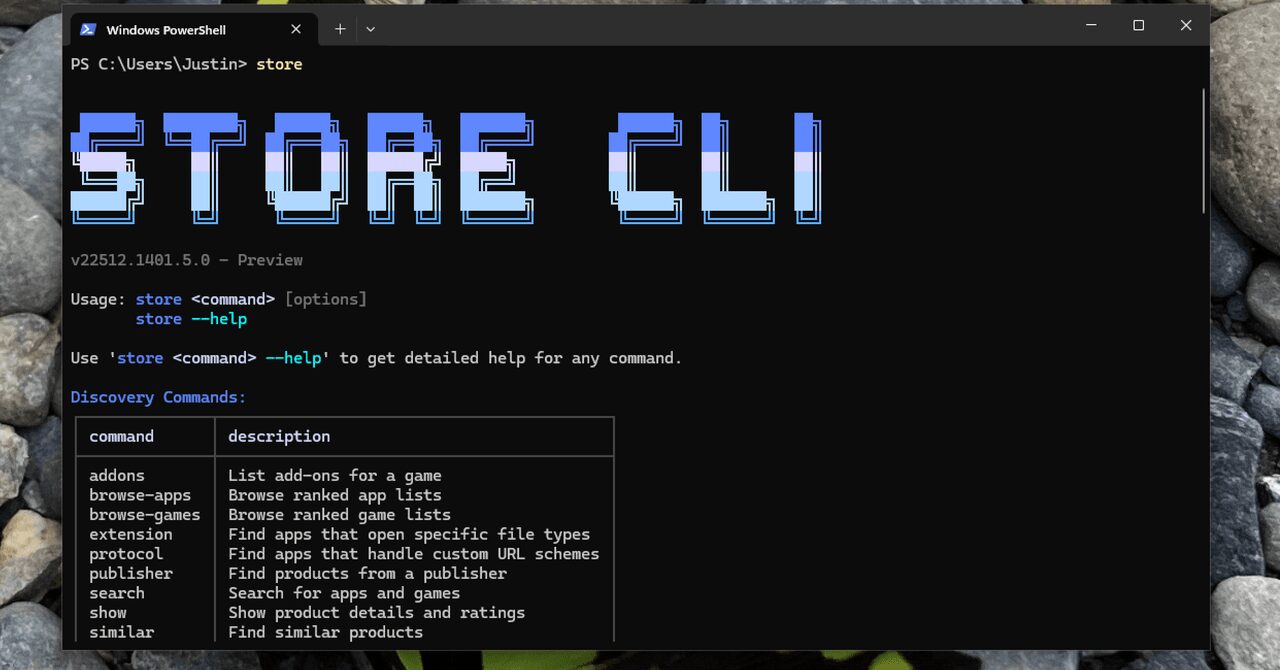
Introduction to Command Line Installation
The ability to install and update Microsoft Store apps using the command line is a significant development for Windows users. By leveraging Windows’ PowerShell, users can now quickly install apps directly from the Microsoft Store without the need to navigate through the typical graphical user interface, which often includes ads or clutter. This method streamlines the installation process, making it more efficient for those who prefer using command-line interfaces.
Advantages of Command Line Installation
One of the primary advantages of installing Microsoft Store apps via the command line is the speed and simplicity it offers. By typing simple, text-based commands into PowerShell, users can bypass the graphical interface of the Microsoft Store, avoiding ads and other distractions. This approach is particularly beneficial for developers and power users who frequently install and update applications as part of their workflow. It also provides a more controlled environment for managing apps, which can be especially useful in enterprise settings.
Technical Fact Sheet
- PowerShell: A task-based command-line shell and scripting language built on .NET.
- Microsoft Store: A digital distribution platform developed by Microsoft for Windows.
- Command-Line Interface (CLI): A means of interacting with a computer program where the user issues commands to the program in the form of successive lines of text.
- Windows Package Manager: A tool for discovering, installing, upgrading, configuring, and removing applications on Windows.
- Windows 10/11: Operating systems that support the installation and updating of Microsoft Store apps via the command line.
Utilizing PowerShell for App Management
To install apps from the Microsoft Store using PowerShell, users must first ensure they have the appropriate permissions and that PowerShell is configured to allow script execution. The process involves searching for the app in the Microsoft Store, noting its package name, and then using specific PowerShell commands to install it. Updating apps follows a similar process, with the added step of checking for available updates before applying them.
Security Considerations and Best Practices
When managing Microsoft Store apps via the command line, it’s essential to consider security best practices. This includes ensuring that the source of the apps is trusted and that the system’s security features, such as Windows Defender, are enabled. Regularly updating apps and the operating system itself is also crucial for maintaining security and benefiting from the latest features and fixes.
Conclusion and Future Developments
The ability to install and update Microsoft Store apps using the command line represents a significant step forward in Windows usability and management. As Windows and the Microsoft Store continue to evolve, we can expect even more streamlined and secure methods for app management to emerge. For now, this feature provides a powerful tool for both individual users and organizations looking to optimize their app installation and update processes.