PowerToys Command Palette Replaces Third-Party App Launchers
Microsoft’s latest update to PowerToys introduces a feature that has revolutionized my workflow. The new Command Palette dock toolbar isn’t just an upgrade—it’s a complete replacement for third-party app launchers like Launchy or Alfred. As someone who relies heavily on keyboard shortcuts, this addition has streamlined my daily tasks and boosted productivity.
Why the PowerToys Command Palette Stands Out
Traditional app launchers often require separate installations and configuration. PowerToys, however, integrates seamlessly with Windows while offering advanced customization. Here’s what makes this feature a game-changer:
- Keyboard-First Design: Launch apps, files, and folders with a single keystroke.
- Customizable Shortcuts: Assign unique triggers for frequently used tools.
- Instant Search: Type to find anything on your system without leaving your workflow.
How It Compares to Third-Party Tools
While tools like Launchy offer similar functionality, PowerToys eliminates the need for external software. For example, I previously used Launchy for quick app access but now rely entirely on PowerToys. The built-in Windows integration means no additional resources are consumed, and updates are handled automatically.
Getting Started with PowerToys Command Palette
Enabling the Command Palette is straightforward. Here’s how to set it up:
- Download PowerToys from the Microsoft GitHub page.
- Install the latest version and open the PowerToys settings.
- Navigate to the Command Palette section and enable the dock toolbar.
- Customize your shortcuts via the Hotkeys tab.
Pro Tips for Power Users
Maximize efficiency with these advanced settings:
- Use
Win + Ctrl + Spaceas the default trigger (customizable). - Pin frequently used apps to the Command Palette dock.
- Enable Auto-complete for faster searches.
Real-World Benefits
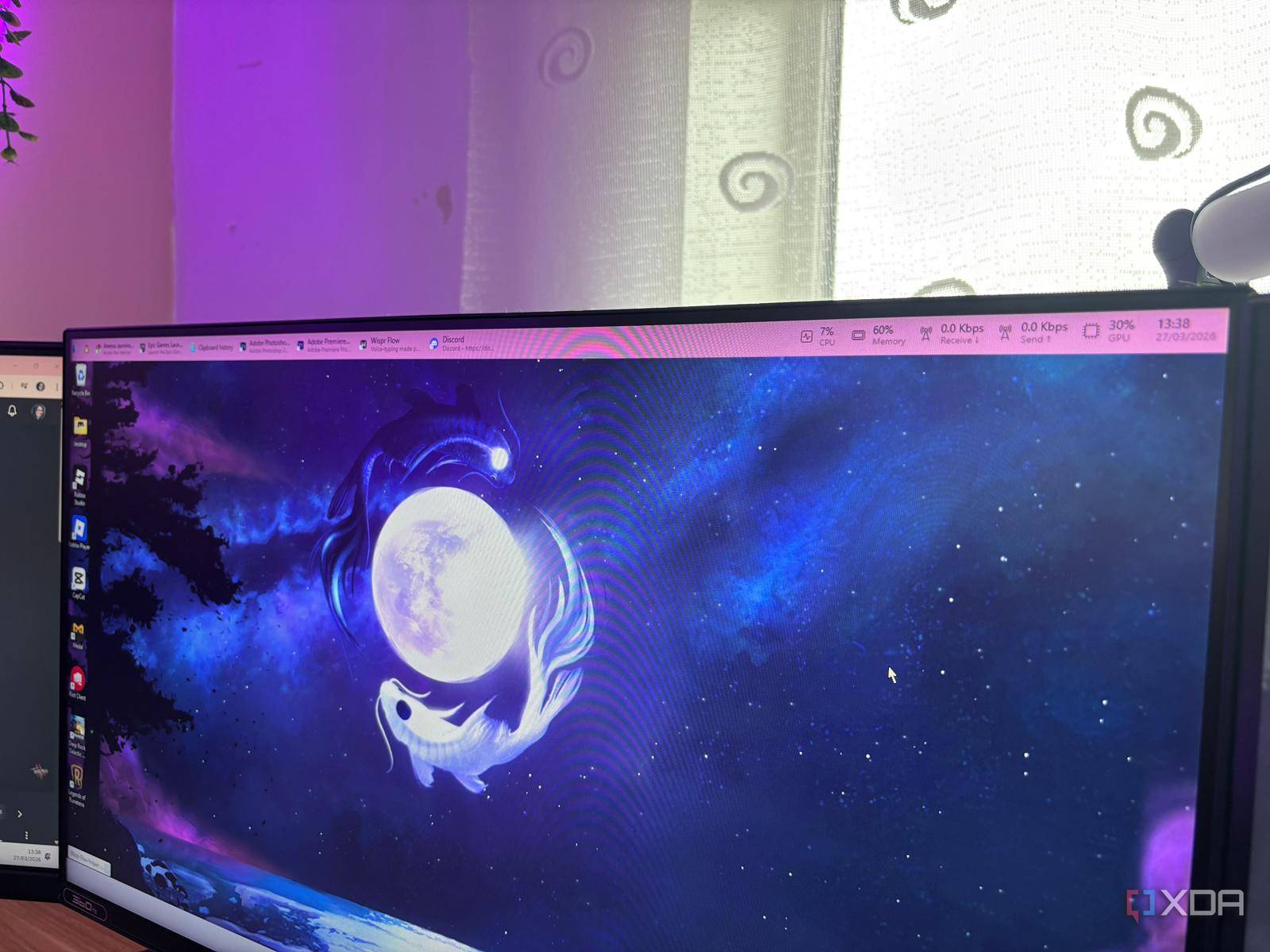
Since adopting the PowerToys Command Palette, my workflow has become significantly faster. For instance, launching Visual Studio Code now takes a single keystroke instead of navigating through the Start menu. The dock toolbar also provides instant access to file explorers, scripts, and even command-line tools.
For developers, this feature is invaluable. Typing cmd or powerShell in the Command Palette opens terminal windows directly. Meanwhile, designers can jump to tools like Photoshop or Figma with custom shortcuts.
Why This Matters for Windows Users
Microsoft continues to prove that native tools can outperform third-party alternatives. The PowerToys Command Palette isn’t just a convenience—it’s a productivity multiplier. By replacing external launchers, it reduces system clutter and ensures compatibility with future Windows updates.
When to Stick with Third-Party Tools
While PowerToys covers most use cases, some users may still prefer external launchers for advanced scripting or cross-platform support. However, for 90% of workflows, PowerToys provides a robust, free solution.
Final Thoughts and Call to Action
If you’re tired of juggling multiple app launchers, give PowerToys a try. The Command Palette dock toolbar is a testament to Microsoft’s commitment to enhancing Windows for power users. Download PowerToys today and experience a faster, more intuitive way to manage your apps.