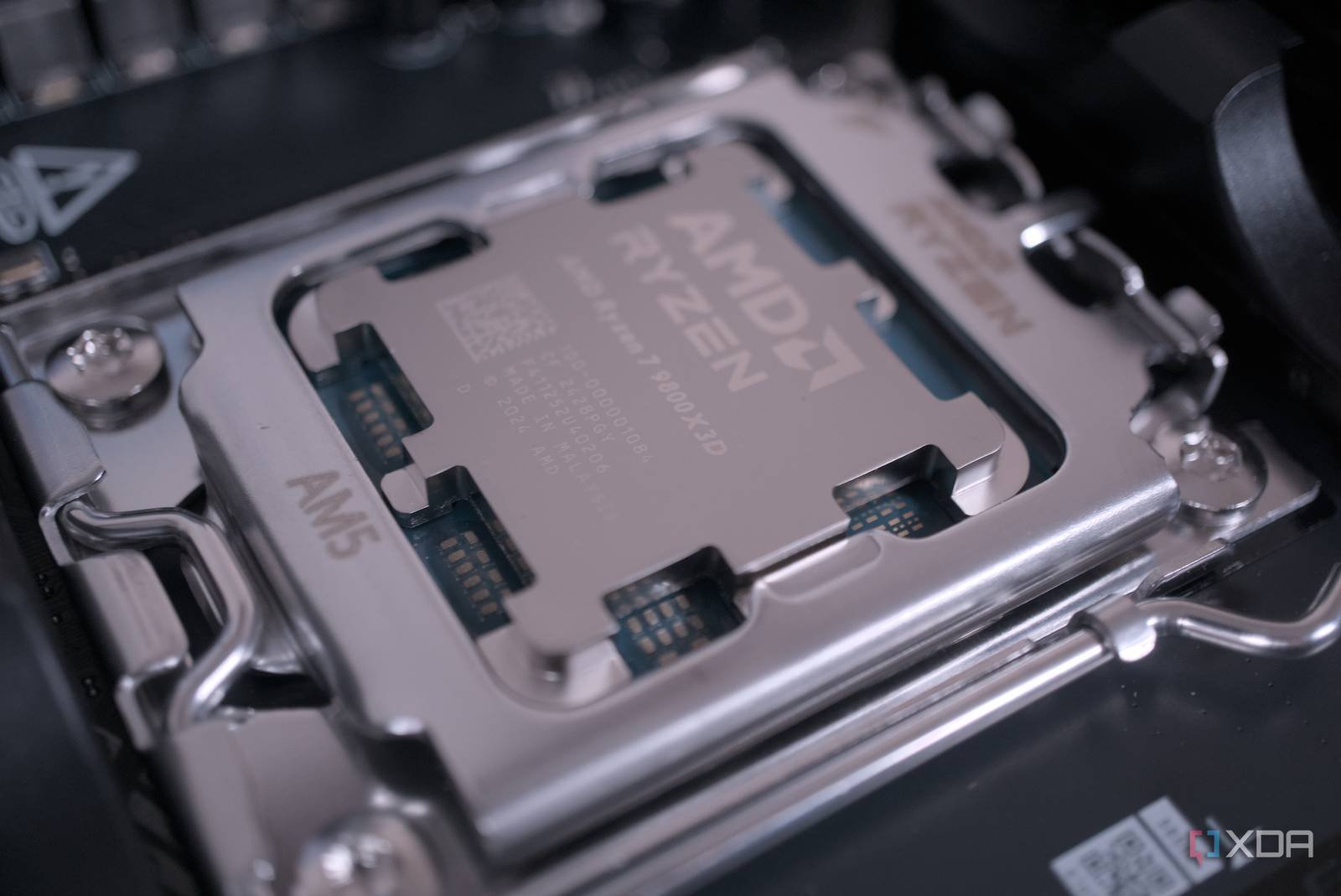
Introduction
Modern CPUs come packed with performance-boosting features, but many remain disabled by default in your BIOS. These hidden settings can unlock significant speed gains for gaming, productivity, and multitasking. In this guide, we’ll show you how to identify and enable these features safely.
Understanding BIOS and CPU Features
Your motherboard’s BIOS (Basic Input/Output System) acts as the control center for hardware settings. Manufacturers often disable advanced CPU features to prioritize stability or power efficiency. However, these settings can leave your system underperforming compared to its full potential.
Why Features Stay Disabled
- Manufacturer defaults: OEMs disable features to simplify user experience
- Power savings: Features like Intel SpeedStep reduce power draw
- Thermal management: Overclocking features are locked for safety
Commonly Disabled CPU Features
Here are key performance features often left inactive:
Intel CPUs
- Intel SpeedStep: Dynamic clock speed adjustment
- Hyper-Threading: Doubles thread count for multitasking
- Intel Turbo Boost: Short-term performance spikes
AMD CPUs
- Core Performance Boost: Adaptive clock speed scaling
- Simultaneous Multithreading: Thread doubling
- PowerNow!: Power management for laptops
How to Enable BIOS Features Safely
- Restart your PC and enter BIOS (usually F2, F10, or Delete)
- Navigate to Advanced > CPU Configuration
- Look for features like Intel SpeedStep or AMD Cool’n’Quiet
- Enable features matching your workload needs
- Save changes and reboot
Performance Gains to Expect
Enabling these features can yield:
- 10-15% faster multitasking with Hyper-Threading
- Up to 20% performance boost in CPU-intensive tasks
- Improved thermal efficiency for laptops
Conclusion
Don’t let your CPU run at suboptimal levels. By enabling the right BIOS settings, you can unlock performance gains without hardware upgrades. Always research your specific motherboard’s BIOS options before making changes.