Why I Switched from Windows 11 to macOS
I was a long-time Windows user, but after experiencing frustration with Windows 11, I decided to switch to macOS. The final straw was the constant push to use Edge and OneDrive, as well as the ads on the start menu.
What Led Me to Switch
Microsoft’s planned Windows 10 obsolescence in October 2025 was the final push I needed to start looking for a replacement. My Lenovo ThinkPad Carbon X1, which I had been using since 2018, was still in great condition, but Microsoft’s decision made it clear that it was time to move on.
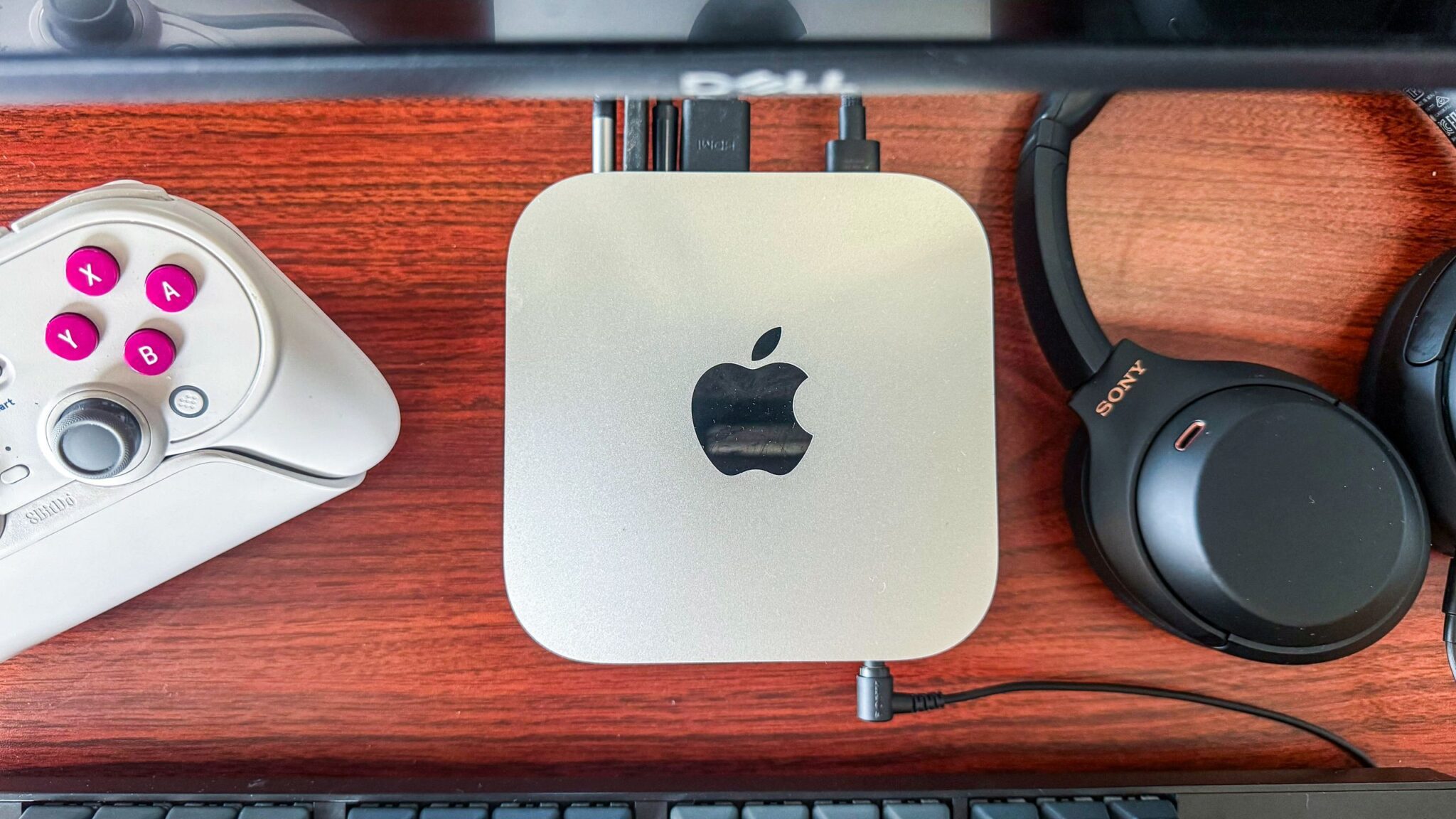
After considering my options, I decided to switch to macOS. I had played around with Linux in the past, but it didn’t feel like the right fit for me. macOS, on the other hand, seemed like a more user-friendly option.
My Experience with macOS
Setting up my new Mac was a breeze. The process was easy and streamlined, and I was up and running in no time. I was impressed by how clean and intuitive the interface was, and I was excited to start exploring all the features that macOS had to offer.
One of the things that struck me most about macOS was how seamless the experience was. Everything just worked, and I didn’t have to deal with any of the frustrations that I had experienced with Windows 11.
Adjusting to a New Operating System
Of course, switching to a new operating system isn’t without its challenges. I had to learn new keyboard shortcuts and get used to a different interface. But overall, I found the transition to be relatively smooth.
There are a few things that I miss about Windows, such as the clipboard feature and the ability to snap two separate windows to either edge of the screen. But overall, I’m happy with my decision to switch to macOS.
Gaming on macOS
Gaming was not a top priority for me when I decided to switch to macOS. However, I was aware that macOS is not the best platform for gaming. Many games are not natively supported, and those that are may not run as smoothly as they do on Windows.
That being said, I’ve found that there are still plenty of great games available for macOS. And with the help of third-party programs like Crossover, it’s possible to run Windows-only games on a Mac.
For now, I’m happy to stick with the games that are natively supported on macOS. I’ve got a great selection of titles in my Steam library, and I’m enjoying exploring all the different options that are available.
Conclusion
Switching to macOS has been a great decision for me. I’m loving the seamless experience and the lack of frustration that comes with using a Mac. If you’re considering making the switch, I would definitely recommend it.
Here are a few things to keep in mind when switching to macOS:
- Be prepared to learn new keyboard shortcuts and get used to a different interface.
- Not all games are natively supported on macOS, but there are still plenty of great options available.
- The transition to macOS may take some time, but it’s worth it in the end.
Frequently Asked Questions
Here are a few frequently asked questions about switching to macOS:
- Q: Is it difficult to switch from Windows to macOS?
- A: While there may be a learning curve, switching to macOS is relatively straightforward. Apple provides a range of resources to help you get started, and the interface is intuitive and easy to use.
- Q: Can I run Windows games on a Mac?
- A: Yes, it is possible to run Windows games on a Mac using third-party programs like Crossover. However, not all games are compatible, and some may not run as smoothly as they do on Windows.
- Q: Is macOS more secure than Windows?
- A: Yes, macOS is generally considered to be more secure than Windows. Apple’s closed ecosystem and strict app review process help to protect users from malware and other security threats.
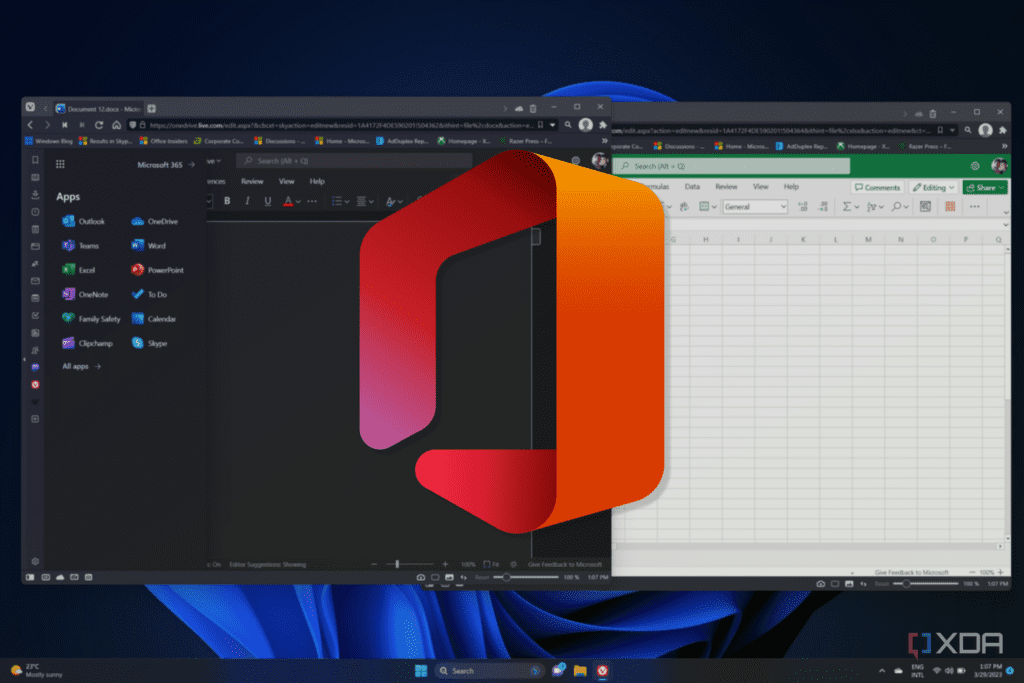
- Q: Can I use Microsoft Office on a Mac?
- A: Yes, Microsoft Office is available for Mac, and it’s fully compatible with the Windows version. You can also use alternative office software like Google Docs or LibreOffice.
- Q: How do I transfer my files from Windows to macOS?
- A: There are a few ways to transfer your files from Windows to macOS, including using an external hard drive, cloud storage, or a transfer cable. Apple also provides a range of resources to help you get started.